Student Workflow
tito is your companion command-line tool throughout TinyTorch. It creates your notebooks, validates your environment, runs progressive tests, exports your implementations into the tinytorch Python package, and tracks your learning journey.
This page guides you through the daily rhythm of working with tito. For a complete catalog of every command and option, see the Command Reference.
1. Set Up and Verify Once
After installing TinyTorch with the one-line installer from the Quick Start, initialize your profile and verify your environment:
cd tinytorch
source .venv/bin/activate       # Windows (Git Bash): source .venv/Scripts/activate
tito setup                     # First-time profile & kernel setup
tito system health             # Verify that all components are green
tito system health verifies Python, the virtual environment, required dependencies (NumPy, Rich, Pytest, Jupytext), and your Jupyter kernel (Figure 1). It exits with status 1 if anything needs fixing; the Troubleshooting page covers the usual causes.
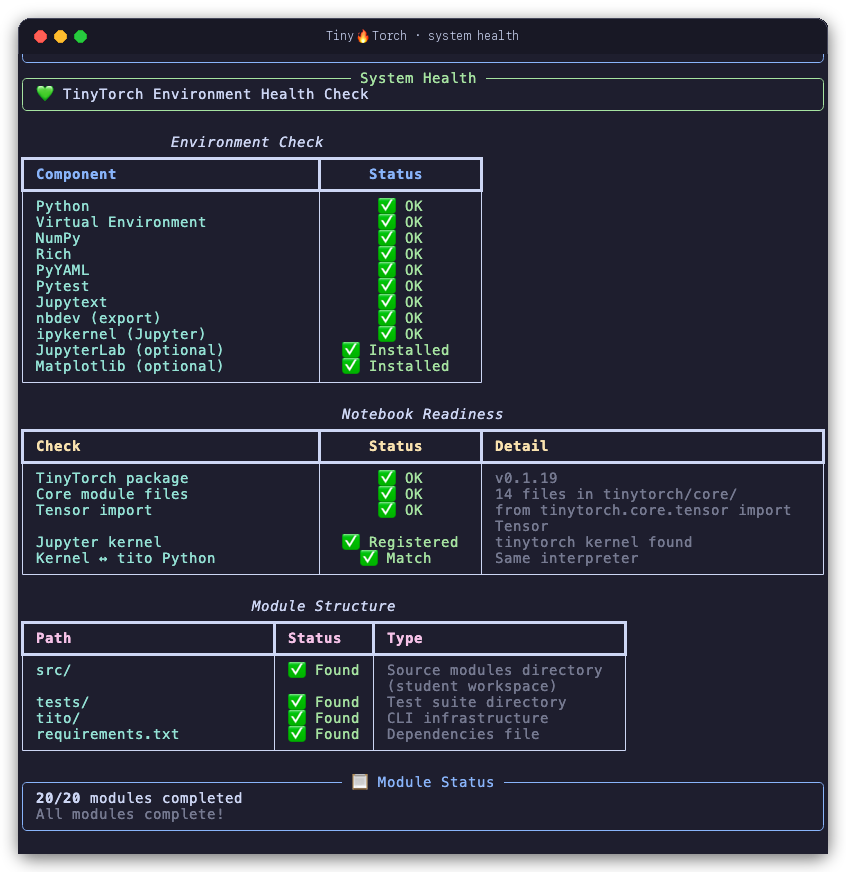
tito system health. A healthy setup shows green checkmarks across the environment, package readiness, and module directory structure.
The virtual environment is active only in the terminal where you activated it. Each time you open a new terminal, run cd tinytorch and source .venv/bin/activate (Windows: source .venv/Scripts/activate) before running any tito commands.
2. The Daily Module Loop
Working through a module follows four intuitive steps:
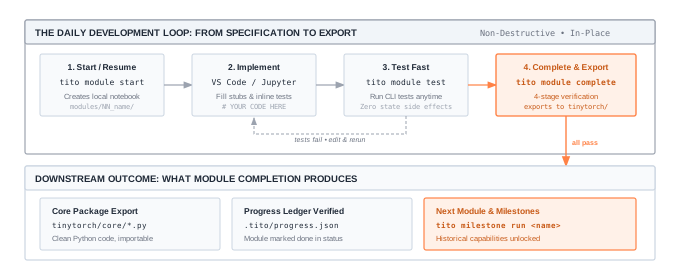
Step 1: Start or Resume a Module
tito module start 01      # First time: generates notebook and opens Jupyter Lab
tito module resume 01     # Later sessions: reopen where you left off
start creates your active notebook at modules/01_tensor/tensor.ipynb from the curriculum source. It enforces prerequisites in order: tito module start 05 will remind you to complete Module 04 first.
By default, tito module start generates a complete notebook for self-study and exploratory reading. If you are taking an instructor-led course or want to test yourself with homework-style problem sets:
tito module start 01 --exercise # or: --assignmentThe --exercise flag clears solutions in core implementation cells, leaving exercise stubs (# YOUR CODE HERE / raise NotImplementedError()) for you to solve and verify against the test cells. If you already started a module and want to switch to exercise mode, run tito module reset 01 --exercise.
You do not have to use the browser-based Jupyter Lab interface. Open the tinytorch/ folder in VS Code or Cursor, open modules/01_tensor/tensor.ipynb, and select the .venv Python kernel (Select Kernel → Python Environments → .venv).
Step 2: Implement Your Code
In an exercise notebook (started with --exercise), read the explanation and find the functions marked with:
# YOUR CODE HERE
raise NotImplementedError()
Replace the stub with your implementation. Each exercise cell is followed immediately by an inline unit test cell that verifies correctness with immediate feedback.
Step 3: Test Incrementally
You can verify your progress at any time directly from the command line without modifying package exports or status:
tito module test 01 # runs unit and integration tests from the CLIStep 4: Complete and Export
When all tests pass in your notebook:
tito module complete 01complete performs a rigorous four-stage verification:
- Notebook Unit Tests: Re-runs all test cells inside your notebook.
- Package Export: Extracts your code into the
tinytorch/package (e.g.tinytorch/core/tensor.py). - Integration Tests: Tests your exported implementation together with all earlier completed modules.
- Progress Ledger: Records the module as completed in
.tito/progress.json.
After completion, your implementation is directly importable like real PyTorch:
from tinytorch.core.tensor import Tensor
x = Tensor([1, 2, 3])
3. Tracking Your Learning Journey
Check your completion status and see what module or milestone comes next:
tito module statustito module status displays a progress bar showing which modules are completed (✅), ready to start (⏳), or locked (🔒) pending earlier modules (Figure 3). Run it from inside your tinytorch folder; anywhere else it reports that no modules were found.
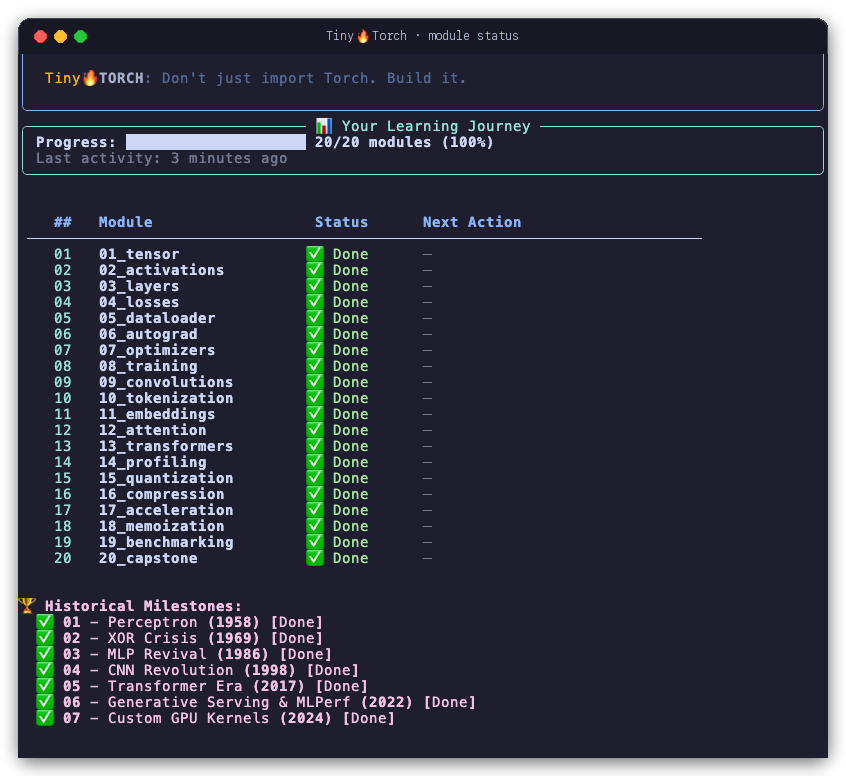
tito module status. Shows overall curriculum completion percentage, locked/ready states, and your immediate next action.
4. Recreating Historical Milestones
TinyTorch modules are not abstract homework exercises; they directly power landmark moments in deep learning history. Once you complete the required modules, run the milestone recreation:
tito milestone list       # see all 7 milestones and unlock requirements
tito milestone run 01     # run Rosenblatt's 1958 Perceptron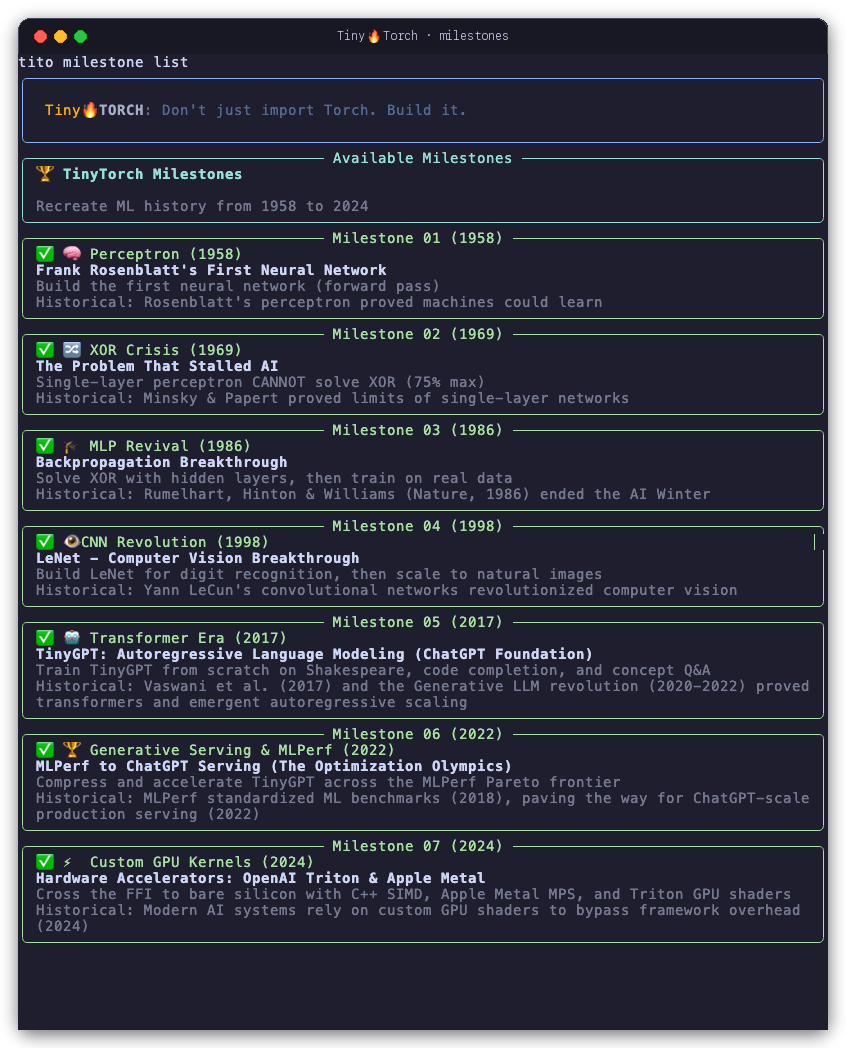
tito milestone list. Displays landmark recreations from Frank Rosenblatt’s 1958 Perceptron to modern MLPerf benchmarks and custom GPU kernels, showing required modules for each.
| Milestone | Historical Event | Required Modules | What You Recreate |
|---|---|---|---|
| 01 (1958) | Frank Rosenblatt’s Perceptron | 01, 02, 03 | First neural network forward pass |
| 02 (1969) | The XOR Crisis (Minsky & Papert) | 01, 02, 03 | Exposing single-layer limits |
| 03 (1986) | MLP Revival (Rumelhart et al.) | 01 to 07 | Backprop training on handwritten digits |
| 04 (1998) | CNN Revolution (LeCun et al.) | 01 to 07, 09 | LeNet image classification |
| 05 (2017) | Transformer Era (Vaswani et al.) | 01-08, 10-13 | TinyGPT Shakespeare, TinyCopilot, and concept Q&A |
| 06 (2018) | MLPerf to Generative Serving | 01-04, 06, 07, 09, 11-19 | INT8 quantization, KV-cache serving, and Pareto frontier |
| 07 (2024) | Custom Kernels | 01, 06, 09, 14, 17 | YOUR Module 17 kernels checked on ragged shapes, then timed against C++ SIMD, Apple Metal MPS, and OpenAI Triton |
5. Where Your Work Lives (and Safe Updates)
TinyTorch enforces a strict boundary between curriculum records and your code:
| Location | Purpose | Behavior During tito update |
|---|---|---|
modules/ |
Your active working notebooks (01_tensor/tensor.ipynb, etc.) |
🛑 Never touched |
tinytorch/core/*.py |
Your exported implementations | 🛑 Never touched |
.tito/progress.json |
Your completed module and milestone ledger | 🛑 Never touched |
tests/ & tito/ |
Test suites, autograders, and CLI tool | 🟢 Updated safely |
Safe In-Place Updates
If your instructor announces updates or new bug fixes are published, never delete your directory. Simply run:
tito update # or: tito system updatetito automatically creates a timestamped safety backup in .tito/backups/pre_update_<timestamp>/ before updating upstream tests or CLI commands. Your notebooks and implementations remain completely untouched.
6. Next Steps
- Explore the complete list of options in the Command Reference.
- If you encounter unexpected errors or environment issues, see the Troubleshooting Guide.