Command Reference
A reference for the tito commands a student uses. The developer and instructor groups (dev, package, nbgrader, benchmark, olympics) are listed by tito --help. For a practical walkthrough of the daily student routine, see the Student Workflow.
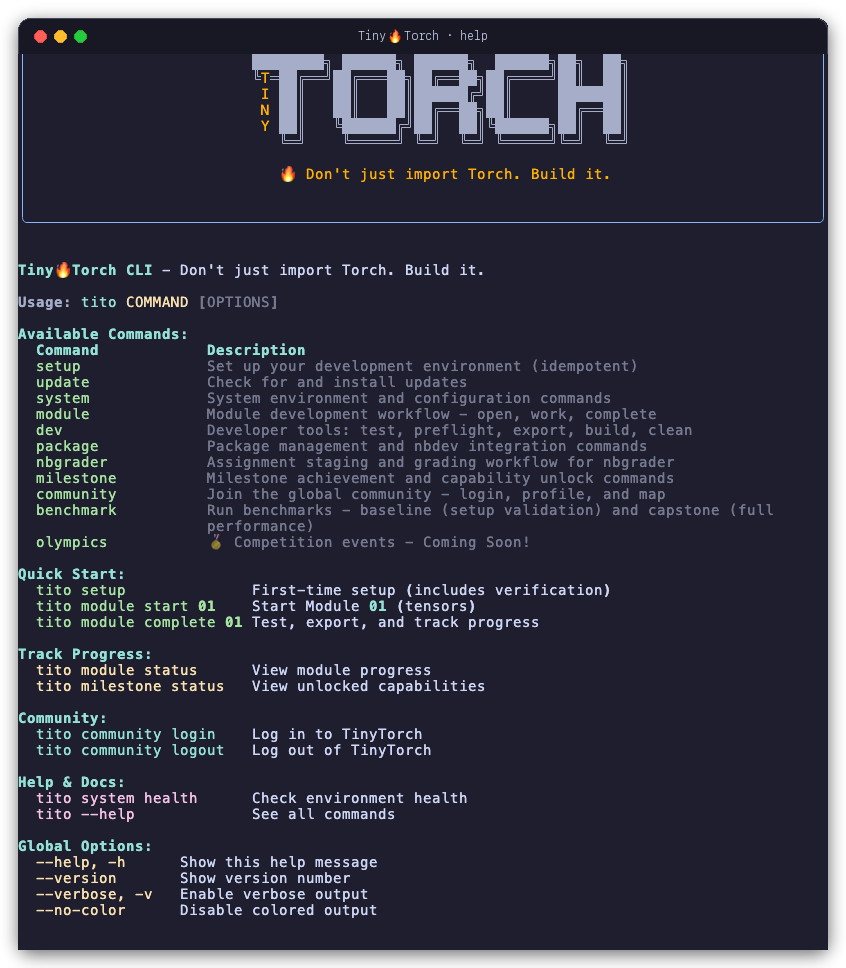
tito --help command catalog. Shows the top-level command groups, quick start commands, and global options.
Global Options
These options apply to every tito command:
| Option | Shorthand | Description |
|---|---|---|
--help |
-h |
Display help text and available options for the command. |
--version |
Display the current installed version of TinyTorch. | |
--verbose |
-v |
Enable detailed diagnostic output and stack traces. |
--no-color |
Disable ANSI terminal colors and rich markup formatting. |
Essential Commands
tito setup
Initializes and verifies your local TinyTorch workspace.
tito setup [OPTIONS]- What it does: Checks that Python 3.10+ and the virtual environment are active, validates package dependencies, registers the
tinytorchJupyter kernel, and creates your user profile at~/.tinytorch/profile.json. - Options:
--force: Prompt to recreate existing components (venv, profile).--skip-venv: Skip virtual environment creation.--skip-packages: Skip package installation.--skip-profile: Skip user profile creation.
- Idempotency: Safe to run at any time; will never overwrite notebooks in
modules/.
tito update
Checks for updates and updates your TinyTorch workspace non-destructively.
tito update [OPTIONS]
# Alias: tito system update- What it does: Checks GitHub for the newest
tinytorch-v*release tag (always over verified TLS), then replacessrc/,tito/,tests/,milestones/,datasets/,bin/, and the project files (requirements.txt,pyproject.toml,settings.ini,README.md,LICENSE) with that release and reinstalls the package. If the update check cannot reach GitHub, it says so and changes nothing. - Data safety: First copies your progress files,
modules/, andtinytorch/core/into.tito/backups/pre_update_<timestamp>/. The update never overwritesmodules/,.venv/,.tito/, or your exported code intinytorch/core/. - Options:
--check: Only check if a new release or branch update is available without installing.--yes,-y: Automatically confirm prompts (useful for unattended scripts).
Module Workflow (tito module)
Commands for managing your 20 progressive curriculum modules.
tito module SUBCOMMAND [MODULE_ID] [OPTIONS]tito module start <N>
Creates your working notebook from the source curriculum and launches Jupyter Lab.
- Example:
tito module start 01createsmodules/01_tensor/tensor.ipynb. - Options:
--no-jupyter: Create the notebook but skip opening Jupyter (for CI or testing).--exercise,--assignment: Create student exercise notebook with implementation stubs and solution holes for coursework or self-assessment.
tito module resume <N>
Reopens an already started notebook in Jupyter Lab where you left off.
- Example:
tito module resume 03
tito module test <N>
Runs unit and integration tests against your notebook and implementation directly from the terminal without exporting.
- Example:
tito module test 01 - Options:
--verbose,-v: Show full per-assertion test details and pytest logs.
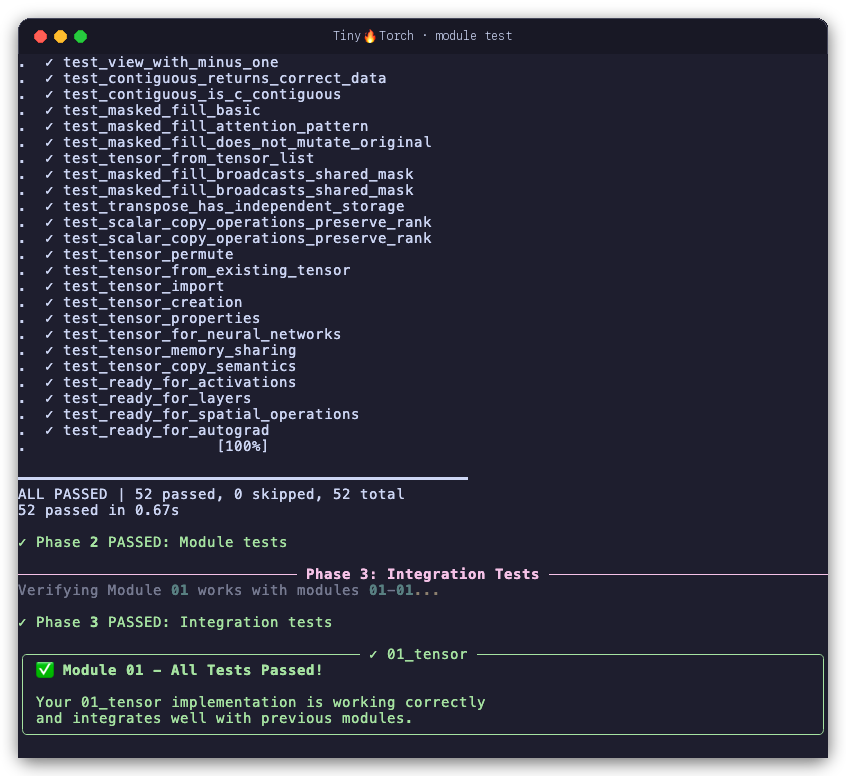
tito module test runs inline checks, module pytest suites with educational feedback, and progressive integration tests without modifying exported code.
tito module complete <N>
Finalizes a module. Re-runs unit tests, exports implementations into tinytorch/, runs integration tests, and marks the module as completed.
- Example:
tito module complete 01 - Options:
--skip-tests: Skip integration test suite.--skip-export: Skip automatic package export.--all: Complete all modules in batch.
tito module status
Displays the learning journey dashboard, showing completed, ready, and locked modules along with your next action.
- Example:
tito module status
tito module view <N>
Opens the module notebook in read-only view mode without altering its status.
tito module reset <N>
Replaces your working notebook with a fresh copy from the curriculum source, clearing all solutions.
- Example:
tito module reset 01 - Options:
--exercise,--assignment: Reset to student exercise notebook with implementation stubs.--all: Reset all module notebooks to pristine state.--force: Skip confirmation prompt.
- Warning: Destructive to the specified module notebook. Save backup copies first if needed.
Milestones (tito milestone)
Commands for running landmark experiments in machine learning history using your code.
tito milestone SUBCOMMAND [MILESTONE_ID] [OPTIONS]tito milestone list
Lists all 7 historical milestones, their historical context, and their required prerequisite modules.
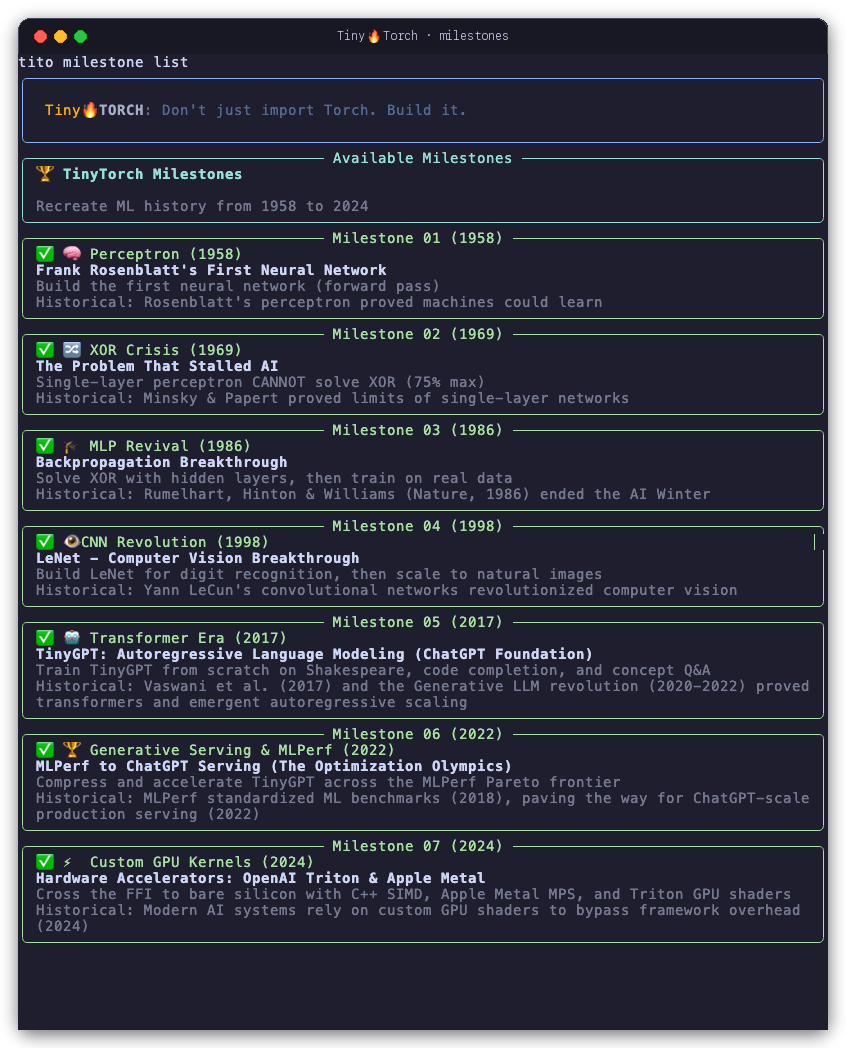
tito milestone list details the historical era, breakthrough problem, prerequisite modules, and unlocked status for each milestone.
tito milestone info <name|N>
Shows detailed metadata, expected outputs, and historical context for a specific milestone.
- Example:
tito milestone info perceptronortito milestone info 01
tito milestone run <name|N>
Executes a milestone recreation using your exported tinytorch implementations. A milestone is recorded as complete only when every one of its required parts has passed: Parts 1 and 2 for Milestones 03, 05, and 06, and Part 1 for the others. Milestone 04’s CIFAR-10 part and Milestone 05’s Parts 3 and 4 are optional extensions. Without --part, a multi-part milestone runs its required parts in order; in an interactive terminal Tito first shows a numbered menu where Enter runs the required parts, a number runs one part, and A runs all of them.
- Example:
tito milestone run perceptron - Example:
tito milestone run mlp - Example:
tito milestone run 05 --part 3 - Options:
--part <N>: Run and record only this part (e.g.--part 3). The milestone completes once every required part has passed, and the output names any required part still missing.--all: Run every part in order, including optional extensions.--non-interactive,-y,--yes: Run without interactive prompts, using defaults.--skip-checks: Skip prerequisite checks and run as a demo. Nothing is recorded.
tito milestone status
Displays your unlocked milestone capabilities and overall history achievements.
System Diagnostics (tito system)
Commands for inspecting and maintaining your environment.
tito system SUBCOMMAND [OPTIONS]tito system health
Runs diagnostics on your Python environment, virtual environment activation, required packages, Jupyter kernel registration, and directory structure, then shows your module progress. It exits with status 0 when every check passes and 1 when it reports any issue, so scripts and CI can gate on it.
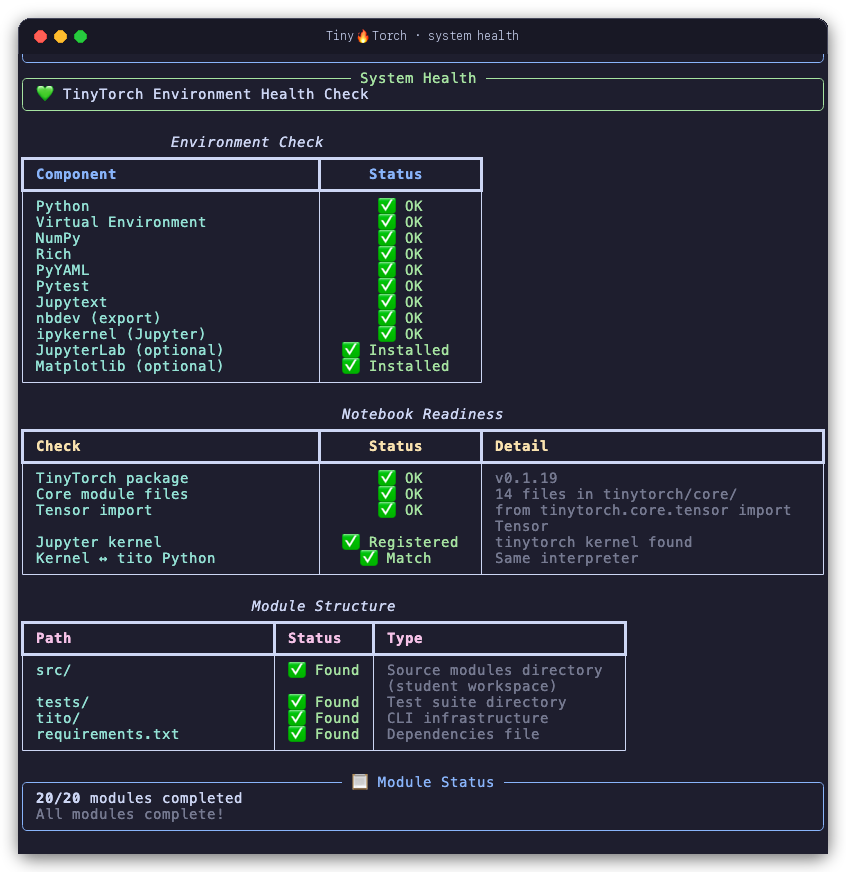
tito system health verifies environment readiness across eleven components, then checks notebook readiness.
tito system info
Displays detailed environment and hardware diagnostic metadata: OS version, Python path, NumPy version, CPU architecture, and available accelerators (MPS on Apple Silicon, CUDA on Linux).
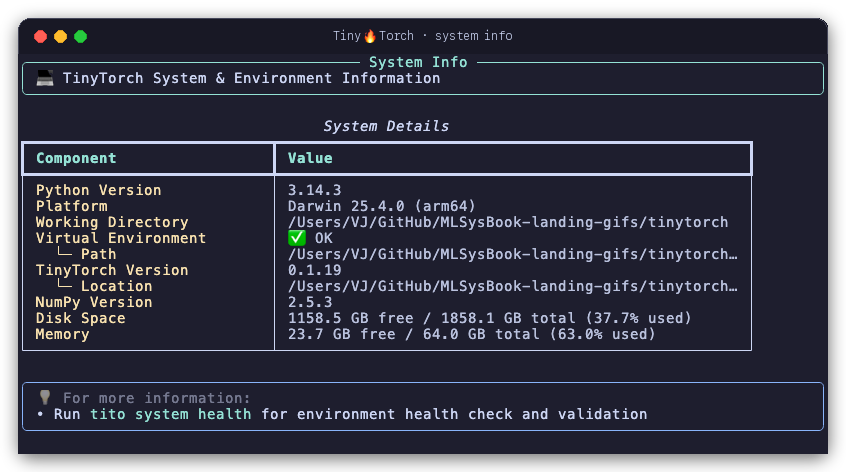
tito system info reports Python versions, virtual environment locations, disk space, and memory capacity.
tito system jupyter
Starts the Jupyter server:
--lab: Start JupyterLab.--notebook: Start the classic notebook.--port <PORT>: Port to run on (default 8888).
There are no start, stop or status subcommands. Stop the server with Ctrl-C in the terminal that started it.
tito system reset
Resets local student implementations or progress history. Prompts for explicit confirmation.
- Options:
--keep-progress: Clears code but preserves.tito/progress.json.--force: Skips confirmation prompt.
Community (tito community)
Optional commands for joining the global TinyTorch learning community.
tito community SUBCOMMAND [OPTIONS]tito community login: Sign in through your browser. Login shows what a sync uploads and asks whethertitomay sync automatically after you complete a module or milestone.tito community sync: Upload your progress now: your account email (as user ID), completed modules and milestones with their dates, completion percentage, and streak. It never uploads code or notebooks.--enable-auto: sync after every module or milestone completion without asking (saved on this machine).--disable-auto: never sync automatically and stop asking;tito community syncstill uploads on demand. SettingTITO_NO_SYNC=1also turns automatic sync off.
tito community status: Show the signed-in account and sync state.tito community profile: Show your community profile.tito community map: Open the community map in your browser.tito community logout: Sign out and remove the saved login from this machine.
Environment Variables
Two environment variables change how tito runs:
| Variable | Default | Purpose |
|---|---|---|
TITO_ALLOW_SYSTEM |
0 |
Set to 1 to bypass the virtual environment check (useful for Docker containers or custom Conda environments). |
TITO_NO_SYNC |
unset | Set to 1 to never sync progress automatically; tito community sync still uploads on demand. |
Three more names come up in practice but are not knobs you turn. TINYTORCH_DEV is read only by the installer, install.sh, where any value other than 0 targets the dev branch instead of main; tito itself never reads it. TINYTORCH_QUIET is set to 1 by tito on every run to suppress autograd startup messages, so exporting it yourself changes nothing. FORCE_COLOR is honored by the rich library that draws tito output rather than by tito; to control color, use the --no-color global option.
See Also
- Student Workflow: The daily four-step cycle for completing modules.
- Troubleshooting: Diagnosing and fixing common environment snags.