Troubleshooting Guide#

Common Issues & Solutions

Quick fixes for the most common TinyTorch problems

Purpose: Fast solutions to common issues. Get unstuck and back to building ML systems quickly.

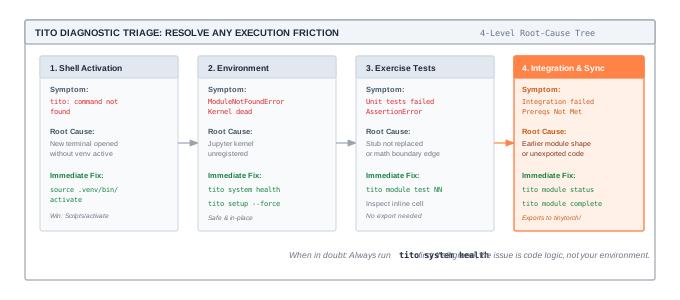
Quick Diagnostic: Start Here#

First step for ANY issue:

cd TinyTorch
source activate.sh
tito system health

This checks:

  • Virtual environment activated

  • Dependencies installed (NumPy, Jupyter, Rich)

  • TinyTorch in development mode

  • Data files intact

  • All systems ready

If health shows errors: Follow the specific fixes below.

If health shows all green: Your environment is fine - issue is elsewhere.

Environment Issues#

Problem: “tito: command not found”#

Symptom:

$ tito module start 01
-bash: tito: command not found

Cause: Virtual environment not activated or TinyTorch not installed in development mode.

Solution:

# 1. Activate environment
cd TinyTorch
source activate.sh

# 2. Verify activation
which python # Should show TinyTorch/venv/bin/python

# 3. Re-install TinyTorch in development mode
pip install -e .

# 4. Test
tito --help

Prevention: Always run source activate.sh before working.

Problem: “No module named ‘tinytorch’”#

Symptom:

>>> from tinytorch import Tensor
ModuleNotFoundError: No module named 'tinytorch'

Cause: TinyTorch not installed in development mode, or wrong Python interpreter.

Solution:

# 1. Verify you're in the right directory
pwd # Should end with /TinyTorch

# 2. Activate environment
source activate.sh

# 3. Install in development mode
pip install -e .

# 4. Verify installation
pip show tinytorch
python -c "import tinytorch; print(tinytorch.__file__)"

Expected output:

/Users/YourName/TinyTorch/tinytorch/__init__.py

Problem: “Virtual environment issues after setup”#

Symptom:

$ source activate.sh
# No (venv) prefix appears, or wrong Python version

Cause: Virtual environment not created properly or corrupted.

Solution:

# 1. Remove old virtual environment
rm -rf venv/

# 2. Re-run setup
./setup-environment.sh

# 3. Activate
source activate.sh

# 4. Verify
python --version # Should be 3.8+
which pip # Should show TinyTorch/venv/bin/pip

Expected: (venv) prefix appears in terminal prompt.

Module Issues#

Problem: “Module export fails”#

Symptom:

$ tito module complete 03
 Export failed: SyntaxError in source file

Causes:

  1. Python syntax errors in your code

  2. Missing required functions

  3. NBGrader metadata issues

Solution:

Step 1: Check syntax:

# Test Python syntax directly (for developers)
python -m py_compile src/03_layers/03_layers.py

Step 2: Open in Jupyter and test:

tito module resume 03
# In Jupyter: Run all cells, check for errors

Step 3: Fix errors shown in output

Step 4: Re-export:

tito module complete 03

Common syntax errors:

  • Missing : after function/class definitions

  • Incorrect indentation (use 4 spaces, not tabs)

  • Unclosed parentheses or brackets

  • Missing return statements

Problem: “Tests fail during export”#

Symptom:

$ tito module complete 05
Running tests...
 Test failed: test_backward_simple

Cause: Your implementation doesn’t match expected behavior.

Solution:

Step 1: See test details:

# Tests are in the module file - look for cells marked "TEST"
tito module resume 05
# In Jupyter: Find test cells, run them individually

Step 2: Debug your implementation:

# Add print statements to see what's happening
def backward(self):
 print(f"Debug: self.grad = {self.grad}")
 # ... your implementation

Step 3: Compare with expected behavior:

  • Read test assertions carefully

  • Check edge cases (empty tensors, zero values)

  • Verify shapes and types

Step 4: Fix and re-export:

tito module complete 05

Tip: Run tests interactively in Jupyter before exporting.

Problem: “Jupyter Lab won’t start”#

Symptom:

$ tito module start 01
# Jupyter Lab fails to launch or shows errors

Cause: Jupyter not installed or port already in use.

Solution:

Step 1: Verify Jupyter installation:

pip install jupyter jupyterlab jupytext

Step 2: Check for port conflicts:

# Kill any existing Jupyter instances
pkill -f jupyter

# Or try a different port
jupyter lab --port=8889 modules/01_tensor/

Step 3: Clear Jupyter cache:

jupyter lab clean

Step 4: Restart:

tito module start 01

Problem: “Changes in Jupyter don’t save”#

Symptom: Edit in Jupyter Lab, but changes don’t persist.

Cause: File permissions or save issues.

Solution:

Step 1: Manual save:

In Jupyter Lab:
File → Save File (or Cmd/Ctrl + S)

Step 2: Check file permissions:

ls -la modules/01_tensor/01_tensor.ipynb
# Should be writable (not read-only)

Step 3: If read-only, fix permissions:

chmod u+w modules/01_tensor/01_tensor.ipynb

Step 4: Verify changes saved:

# Check the notebook was updated
ls -l modules/01_tensor/01_tensor.ipynb

Import Issues#

Problem: “Cannot import from tinytorch after export”#

Symptom:

>>> from tinytorch import Linear
ImportError: cannot import name 'Linear' from 'tinytorch'

Cause: Module not exported yet, or export didn’t update __init__.py.

Solution:

Step 1: Verify module completed:

tito module status
# Check if module shows as completed

Step 2: Check exported file exists:

ls -la tinytorch/nn/layers.py
# File should exist and have recent timestamp

Step 3: Re-export:

tito module complete 03

Step 4: Test import:

python -c "from tinytorch.nn import Linear; print(Linear)"

Note: Use full import path initially, then check if from tinytorch import Linear works (requires __init__.py update).

Problem: “Circular import errors”#

Symptom:

>>> from tinytorch import Tensor
ImportError: cannot import name 'Tensor' from partially initialized module 'tinytorch'

Cause: Circular dependency in your imports.

Solution:

Step 1: Check your import structure:

# In modules/XX_name/name_dev.py
# DON'T import from tinytorch in module development files
# DO import from dependencies only

Step 2: Use local imports if needed:

# Inside functions, not at module level
def some_function():
 from tinytorch.core import Tensor # Local import
 ...

Step 3: Re-export:

tito module complete XX

Milestone Issues#

Problem: “Milestone says prerequisites not met”#

Symptom:

$ tito milestone run 04
 Prerequisites not met
 Missing modules: 08, 09

Cause: You haven’t completed required modules yet.

Solution:

Step 1: Check requirements:

tito milestone info 04
# Shows which modules are required

Step 2: Complete required modules:

tito module status # See what's completed
tito module start 08 # Complete missing modules
# ... implement and export
tito module complete 08

Step 3: Try milestone again:

tito milestone run 04

Tip: Milestones unlock progressively. Complete modules in order (01 → 20) for best experience.

Problem: “Milestone fails with import errors”#

Symptom:

$ tito milestone run 03
Running: MLP Revival (1986)
ImportError: cannot import name 'ReLU' from 'tinytorch'

Cause: Required module not exported properly.

Solution:

Step 1: Check which import failed:

# Error message shows: 'ReLU' from 'tinytorch'
# This is from Module 02 (Activations)

Step 2: Re-export that module:

tito module complete 02

Step 3: Test import manually:

python -c "from tinytorch import ReLU; print(ReLU)"

Step 4: Run milestone again:

tito milestone run 03

Problem: “Milestone runs but shows errors”#

Symptom:

$ tito milestone run 03
Running: MLP Revival (1986)
# Script runs but shows runtime errors or wrong output

Cause: Your implementation has bugs (not syntax errors, but logic errors).

Solution:

Step 1: Run milestone script manually:

python milestones/03_1986_mlp/03_mlp_mnist_train.py
# See full error output

Step 2: Debug the specific module:

# If error is in ReLU, for example
tito module resume 02
# Fix implementation in Jupyter

Step 3: Re-export:

tito module complete 02

Step 4: Test milestone again:

tito milestone run 03

Tip: Milestones test your implementations in realistic scenarios. They help find edge cases you might have missed.

Data & Progress Issues#

Problem: “.tito folder deleted or corrupted”#

Symptom:

$ tito module status
Error: .tito/progress.json not found

Cause: .tito/ folder deleted or progress file corrupted.

Solution:

Option 1: Let TinyTorch recreate it (fresh start):

tito system health
# Recreates .tito/ structure with empty progress

Option 2: Restore from backup (if you have one):

# Check for backups
ls -la .tito_backup_*/

# Restore from latest backup
cp -r .tito_backup_20251116_143000/ .tito/

Option 3: Manual recreation:

mkdir -p .tito/backups
echo '{"version":"1.0","completed_modules":[],"completion_dates":{}}' > .tito/progress.json
echo '{"version":"1.0","completed_milestones":[],"completion_dates":{}}' > .tito/milestones.json
echo '{"logo_theme":"standard"}' > .tito/config.json

Important: Your code in modules/ and tinytorch/ is safe. Only progress tracking is affected.

Problem: “Progress shows wrong modules completed”#

Symptom:

$ tito module status
Shows modules as completed that you haven't done

Cause: Accidentally ran tito module complete XX without implementing, or manual .tito/progress.json edit.

Solution:

Option 1: Reset specific module:

tito module reset 05
# Clears completion for Module 05 only

Option 2: Delete progress file:

# Remove progress tracking (will be recreated)
rm .tito/progress.json
tito system health # Recreates the file

Option 3: Manually edit .tito/progress.json:

# Open in editor
nano .tito/progress.json

# Remove the module number from "completed_modules" array
# Remove the entry from "completion_dates" object

Dependency Issues#

Problem: “NumPy import errors”#

Symptom:

>>> import numpy as np
ImportError: No module named 'numpy'

Cause: Dependencies not installed in virtual environment.

Solution:

# Activate environment
source activate.sh

# Install dependencies
pip install numpy jupyter jupyterlab jupytext rich

# Verify
python -c "import numpy; print(numpy.__version__)"

Problem: “Rich formatting doesn’t work”#

Symptom: TITO output is plain text instead of colorful panels.

Cause: Rich library not installed or terminal doesn’t support colors.

Solution:

Step 1: Install Rich:

pip install rich

Step 2: Use color-capable terminal:

  • macOS: Terminal.app, iTerm2

  • Linux: GNOME Terminal, Konsole

  • Windows: Windows Terminal, PowerShell

Step 3: Test:

python -c "from rich import print; print('[bold green]Test[/bold green]')"

Performance Issues#

Problem: “Jupyter Lab is slow”#

Solutions:

1. Close unused notebooks:

In Jupyter Lab:
Right-click notebook tab → Close
File → Shut Down All Kernels

2. Clear output cells:

In Jupyter Lab:
Edit → Clear All Outputs

3. Restart kernel:

Kernel → Restart Kernel

4. Increase memory (if working with large datasets):

# Check memory usage
top
# Close other applications if needed

Problem: “Export takes a long time”#

Cause: Tests running on large data or complex operations.

Solution:

This is normal for:

  • Modules with extensive tests

  • Operations involving training loops

  • Large tensor operations

If export hangs:

# Cancel with Ctrl+C
# Check for infinite loops in your code
# Simplify tests temporarily, then re-export

Platform-Specific Issues#

macOS: “Permission denied”#

Symptom:

$ ./setup-environment.sh
Permission denied

Solution:

chmod +x setup-environment.sh activate.sh
./setup-environment.sh

Windows: “activate.sh not working”#

Solution: Use Windows-specific activation:

# PowerShell
.\venv\Scripts\Activate.ps1

# Command Prompt
.\venv\Scripts\activate.bat

# Git Bash
source venv/Scripts/activate

Linux: “Python version issues”#

Solution: Specify Python 3.8+ explicitly:

python3.8 -m venv venv
source activate.sh
python --version # Verify

Getting More Help#

Debug Mode#

Run commands with verbose output:

# Most TITO commands support --verbose
tito module complete 03 --verbose

# See detailed error traces
python -m pdb milestones/03_1986_mlp/03_mlp_mnist_train.py

Check Logs#

Jupyter Lab logs:

# Check Jupyter output in terminal where you ran tito module start
# Look for error messages, warnings

Python traceback:

# Full error context
python -c "from tinytorch import Tensor" 2>&1 | less

Community Support#

GitHub Issues: Report bugs or ask questions

Documentation: Check other guides

Prevention: Best Practices#

Avoid issues before they happen:

  1. Always activate environment first:

source activate.sh
  1. Run tito system health regularly:

tito system health
  1. Test in Jupyter before exporting:

# Run all cells, verify output
# THEN run tito module complete
  1. Keep backups (automatic):

# Backups happen automatically
# Don't delete .tito/backups/ unless needed
  1. Use git for your code:

git commit -m "Working Module 05 implementation"
  1. Read error messages carefully:

  • They usually tell you exactly what’s wrong

  • Pay attention to file paths and line numbers

Quick Reference: Fixing Common Errors#

Error Message

Quick Fix

tito: command not found

source activate.sh

ModuleNotFoundError: tinytorch

pip install -e .

SyntaxError in export

Fix Python syntax, test in Jupyter first

ImportError in milestone

Re-export required modules

.tito/progress.json not found

tito system health to recreate

Jupyter Lab won't start

pkill -f jupyter && tito module start XX

Permission denied

chmod +x setup-environment.sh activate.sh

Tests fail during export

Debug in Jupyter, check test assertions

Prerequisites not met

tito milestone info XX to see requirements

Still Stuck?#

Need More Help?

Try these resources for additional support

Report Issue → Command Reference →

Most issues have simple fixes. Start with tito system health, read error messages carefully, and remember: your code is always safe in modules/ - only progress tracking can be reset.